
My Views
What is a view?
Views are Critical Labs's way of organizing meaningful dashboards of your data in one location. Views can be organized in any way you choose, though having one view per piece of monitored equipment is a good first start.
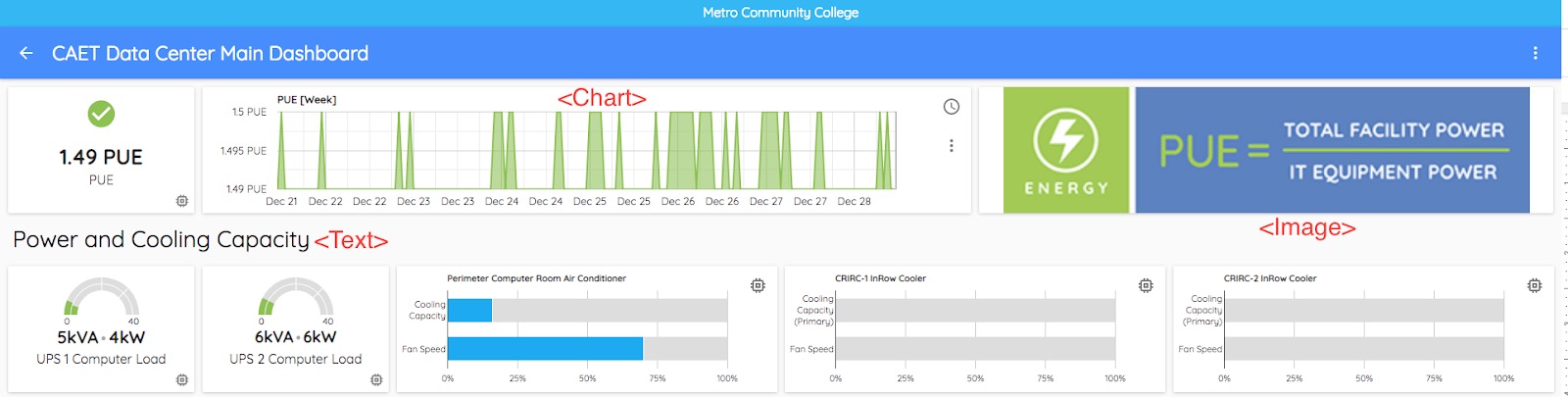
Views are made up of varying sized panels called widgets. Widgets can display a chart, text, or image, as seen below.
How do I use a view?
Create as many views as you need to monitor your equipment. We recommend grouping similar equipment in each view.
If you don’t know where to start, take a look at View Templates to get an idea how you may want to setup a view to monitor your equipment.
To see current View Templates:
- Go to My Views from the menu bar in the top right.
- Select the Add icon in the My Views header.
- Click on a template dropdown.
- Click the launch icon to open the view template in a new tab.
Creating a new view
To create a new view:
- Go to My Views from the menu bar in the top right.
- Select the Add icon in the My Views header.
- Select a View Template: choose Create a Custom View.
- Select Tags: if applicable, select any tags that relate to the view you are creating. Otherwise click Next.
- Share: Select individuals who can view, modify, and share this view.
- Alerts: choose which users will receive warning, critical, and disconnected alerts that are set on this view. Thresholds for these alerts are set individually on each widget.
- Name View: what will this view monitor?
Adding widgets to a view
Add a widget to monitor a data point, add text, or add an image to your view. There are five types of widgets:
- Sensor Value: Displays the data point as a single value, trend chart, or gauge chart.
- Calculation: User Sensor Value(s) to calculate live and historical sensor information. This is useful for calculating averages and for changing the order of magnitude of a data value (such as converting W to kW). You will need to set warning and critical thresholds on calculation widgets, as the system cannot infer thresholds from calculated sensors. NOTE - you will NOT receive alert emails on calculation widget thresholds
- Example: (Sensor Value + Sensor Value2) / 2
- Example: Sensor Value / 1000
- Text: Add text to your View. We suggest adding a description of the widgets nearby, or noting significant information about a certain piece of equipment. If you wish to add service contact information about a piece of equipment, please do this from the Equipment screen.
- Image: Upload an image to display on your view. Images can be logos, diagrams, photos of the location where the equipment is monitored, etc.
- Countdown: Set a timer to notify you at a later date. These are intended for maintenance, such as filter or battery replacement reminders, though they can be used for anything. Critical Labs will send an initial reminder email on a reminder date and a second reminder email on the timer expiration date. You can read more about countdown widgets here.
To add a widget:
- Select the Add Widget icon in the header (plus sign).
- Choose the type of widget you want to add.
- Sensors
- Add sensors: Select the appropriate gateway > equipment > sensors.
- Display as: choose single value, trend, or chart.
- Add External Link (optional):
- Name Widget: create a name for the widget.
- Calculation
- Add Calculation: enter the calculation. Use the SENSOR button to insert the sensors value into the formula.
- Add Unit (optional): add a unit label.
- Display As: choose single value, trend, or chart .
- Set Thresholds: set a warning and critical error threshold for the sensor.
- Add External Link (optional):
- Name Widget: create a name for the widget.
- Text
- Add Text: add the text to display. Options include headers, bold, italics, insert link, bulleted list, numbered list, background color.
- Image
- Add photo: select a photo from your computer
- Countdown
- Add Timers: set the name, countdown, and reminder for each timer
- Name Widget: create a name for the widget.
View Templates
When you add a new View, you have the option of choosing from a template instead of starting from scratch. A template is view with predefined widgets that will automatically grab applicable sensors from your pieces of equipment. All you have to do is to choose a template when creating a view, and the template will tell the system to grab the correct information to populate itself.
Most of the default templates that come with Critical Labs are templates for specific models of equipment. Our domain experts have put together useful templates that we believe will help you monitor your system better. If you disagree, you can always edit your view after it has been created.
Create a template
NOTE - To create a template, you need ‘Can Make Changes’ permission on the view
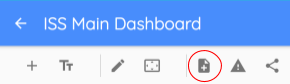
A view template can be created from any of your Views. Keep in mind, however, that once you’ve created a template, it cannot change. So please be sure you are happy with your View layout and widgets before creating a template. To create a template from your view, click the Create a template from view icon on the page you want to create a template from, as shown below.
From the Create Template page, you will be able to further refine the View before creating the actual template. On this page you will see how your template will look at different screen sizes, such as smartphones, tablets, and desktop monitors. By clicking the edit icon, you can change the size and location of each widget for that View size. Click the next arrow in the header after configuring each size of your view. Finally, name the template and choose whether you wish to share your template with other companies or not.
Up Next -> Users and Permissions
Comments
0 comments
Please sign in to leave a comment.