
Critical Labs gateways can listen for SNMP traps to help you diagnose problems with your equipment. Learn more about SNMP traps and how Critical Labs uses them here.
To setup traps on a Vertiv Unity Card, do the following:
Navigate to your Unity Card's web portal by entering its IP address into your web browser. Enter the login credentials (if applicable). Select the Communications tab near the top of the page:
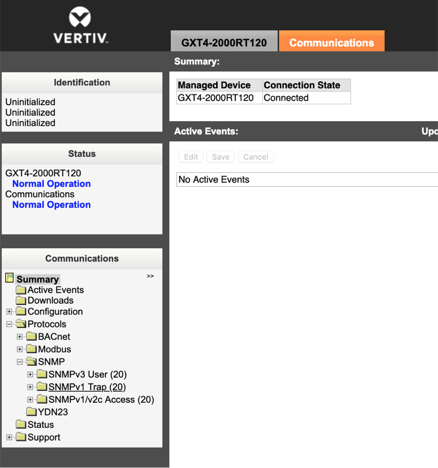
On the left hand side of the page select Protocols -> SNMP -> SNMPv1 Trap.
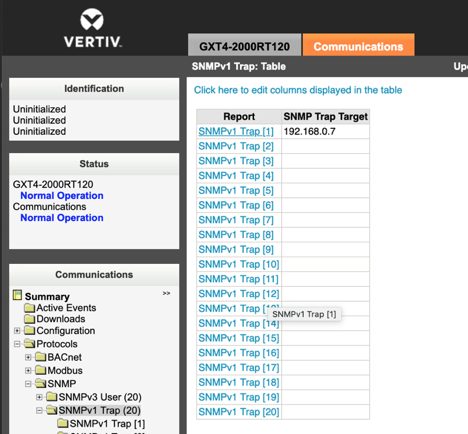
You should see many available slots for configuring where traps should be sent. Select one of the open slots (pick one that isn't being used).
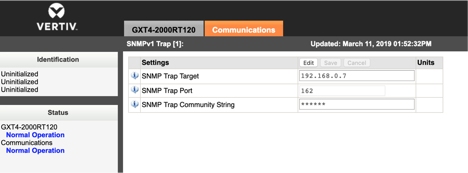
Select the edit button and enter the login credentials again. Enter the Critical Labs gateway’s IP address (which can be found on the gateway's information page in the web app) in SNMP Trap Target. Make sure to set 162 for SNMP Trap Port and public for SNMP Trap Community String. Then click Save.
Configuring Trap Types
Now you can configure which traps the equipment should send. To configure trap settings, select Protocols -> SNMP on the left hand side of the page. Select the Edit button, enter your login credentials, then decide which of the following you would like to enable:
- RFC-1628 MIB Traps
- LGP MIB Traps
- LGB MIB System Notify Trap
These different options will send traps in different formats to Critical Labs to ingest. In some cases, having all three of these checked will send the same trap three times. However, we recommend selecting all three so that you don't miss anything.
Click Save.
Restart your Unity card. Your equipment is now setup to report traps to Critical Labs. You can verify this by viewing the traps in the web app for your piece of equipment (instructions here).
Comments
0 comments
Please sign in to leave a comment.